
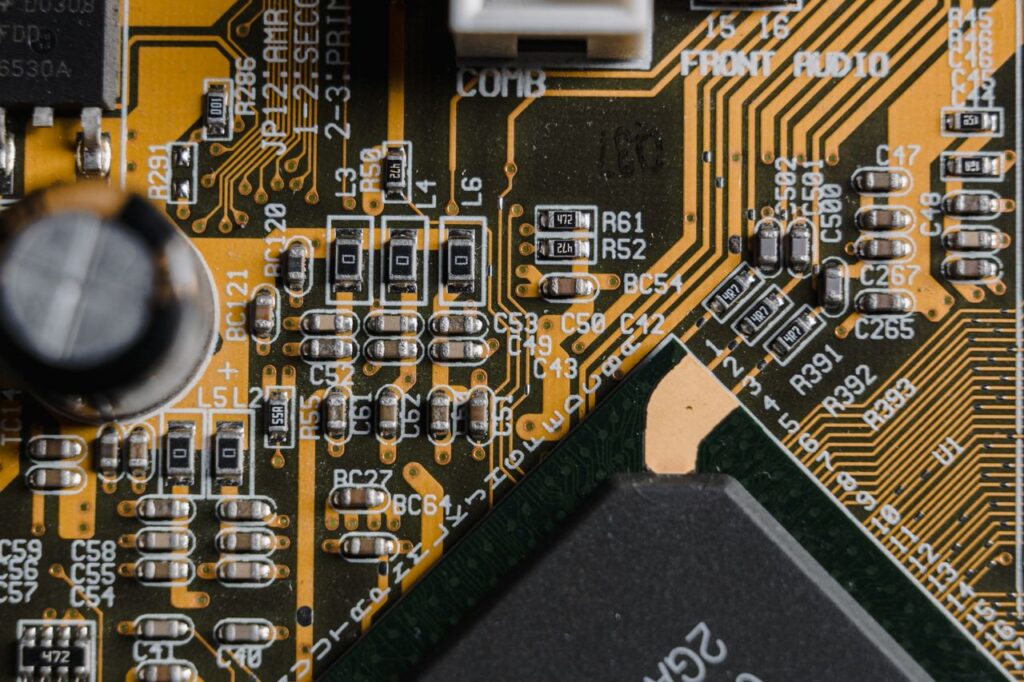
The Motherboard: The Foundation of Your Computer
The motherboard is the main circuit board that connects the major components of a computer and allows them to communicate with each other. Motherboards come in many different shapes and sizes known as form factors, which offer different levels of expandability. The three common consumer standards are ATX, which offers high expandability; Micro-ATX, which balances size and expandability; and Mini-ITX, which focuses on compact computer builds.
When operating within a digital workspace, the motherboard acts as the infrastructure that connects everything together. A computer has many different components, but those components need a way to communicate and work together as one system. The motherboard provides that foundation.
The computer’s processor, or CPU, connects to the motherboard and acts as the worker by executing instructions. Memory, or RAM, also connects to the motherboard and acts as a temporary workspace where the computer can manipulate data. Storage devices such as hard disk drives (HDDs), solid-state drives (SSDs), and M.2 NVMe SSDs connect to the motherboard to provide long-term data storage.
The motherboard also provides connections for graphics processing units, expansion cards, USB devices, networking, audio, and other hardware. By connecting these components, the motherboard allows the computer to operate as a complete system. A computer system in some ways resembles a city.
How a motherboard works
So yes, the motherboard connects everything, but how does it work exactly?
Think about a city. A city can have businesses, homes, schools, hospitals, and other places that all serve different purposes. But those places cannot function as a connected community without infrastructure. Roads allow people and goods to move, power lines provide electricity, and communication networks allow information to travel between different parts of the city. A computer works in a similar way.
The power comes from a power source, and the power supply unit ensures that the computer receives the appropriate electrical power. The motherboard receives power and distributes it to the components connected to it.
Power, however, is only part of the process. The motherboard also provides pathways that allow components to exchange information. The CPU can communicate with RAM, storage devices can transfer data to the system, and a graphics card can communicate with the CPU and other components through the motherboard. A motherboard also contains a chipset that helps manage communication between the processor and other hardware while providing features such as additional connectivity, storage support, and expansion capabilities. In this way, the motherboard is more than a circuit board with a bunch of components plugged into it. It is the infrastructure that allows the individual parts of a computer to become a functioning system.
The Components that connect to the Motherboard
CPU + Motherboard
The CPU and motherboard must be compatible with each other. The processor connects to a specific CPU socket on the motherboard, and the motherboard must support the processor’s platform. For personal and professional users, ordering incompatible parts can introduce time and financial consequences. Hopefully this discovery is made before the technology is unpackaged and prepared for installation.
RAM + Motherboard
RAM within a computer gives the system a temporary workspace for information that the CPU can quickly access. For those who plan to upgrade their computer in the future, having additional memory slots can provide that flexibility. When using a motherboard with multiple memory slots, matched pairs of RAM can help take advantage of dual-channel memory configurations. If you plan to upgrade later, consider how many slots the motherboard has and how much memory you may eventually need.
GPU + Motherboard
A graphics processing unit, or GPU, connects to the motherboard through an expansion slot. The most used slot is the PCIe x16 slot. The GPU acts as a specialized graphics processor.
Ask yourself, “Do I really need a dedicated GPU?”
It really depends on the needs of the computer. Is the computer for basic productivity, gaming, video editing, 3D modeling, and machine learning? The motherboard will need to have the slots available to handle an additional GPU.
Storage + Motherboard
Storage devices provide long-term access to files, applications, and the operating system. Common storage technologies include hard disc drives, solid state drives, and NVME solid state drives. The number and type of storage connections become important for users with plans to store large amounts of data and add additional drives. Computers can store thousands of documents and photos without a problem. Games take up plenty of storage alongside videos.
Ask yourself, “How much storage do I really need?”
BIOS/UEFI
Before the operating system can take control of the computer, the motherboard needs to initialize the hardware. To initialize means the hardware is being prepared for use. This process is handled by firmware known as BIOS or UEFI. The firmware provides settings that allow users to configure certain hardware features such as overclocking and security features. BIOS updates are something to consider if building a system with a longer product lifecycle or if it will be used for years to come.
Security
Technologies such as TPM and Secure Boot are commonly associated with modern firmware and security systems. TPM 2.0 provides hardware-based security functions that can help protect encryption keys and other sensitive security information. Secure Boot helps ensure that trusted software is used during the startup process. Secure boot helps ensure that trusted software is used during the startup process.
How to Choose the Right Motherboard
Step 1: Choose your CPU
The major processor manufacturers for consumer computers include AMD and Intel. Choosing the processor first can narrow down which motherboards are compatible with your computer. When considering what you want out of a motherboard, ask What am I trying to accomplish?
Step 2: Identify the CPU socket
Once you know which processor you want, identify the CPU socket and platform it requires. Checking the motherboard manufacturer’s CPU compatibility list before purchasing can help prevent compatibility issues.
Step 3: Choose the chipset
The chipset determines the features and capabilities available on the motherboard.
Expansion, connectivity, overclocking capabilities, storage support, and USB slots are important considerations. A more expensive chipset isn’t automatically better for every user. The goal is to find a chipset that fits the user’s needs.
Step 4: Determine your RAM requirements
Consider how much memory your computer needs. Many software organizations will list requirements to run their software on the packaging and on their websites. A computer used for basic productivity may not require the same capabilities as a gaming computer, workstation, or a computer used to run business applications. There is also a point of diminishing returns where spending more money on additional RAM may provide fewer practical benefits for the way the computer is being used. The goal is to determine how much RAM is necessary rather than automatically choosing the maximum amount available.
Step 5: Determine expansion needs
Dedicated expansion needs can include GPUs, Wi-Fi cards, additional NVMe drives, capture cards, sound cards, and other PCIe devices. If you plan to add hardware later, consider those before purchasing the motherboard rather than discovering you ran out of available connections.
Step 6: Consider connectivity
Consider USB ports, Ethernet, Wi-Fi, Bluetooth, Audio connections, and display connections. The motherboard determines the ways a computer can connect to other devices. More connectivity provides more flexibility but usually at an increased cost. If there is the desire to connect more storage later, it would help to identify where it would connect to the motherboard ahead of time.
Step 7: Consider Physical size
ATX: Larger boards with more room for expansion and connection
Ideal and enthusiast and heavy workloads
Micro-ATX: Smaller than ATX and meets general purpose needs
Ideal for gamers, remote workers, and light video editing
Mini-ITX: Compact design for smaller builds
Ideal for compact spaces, browsing, light gaming, email
Step 8: Consider BIOS support
Understanding BIOS and UEFI support before purchasing can help enable users to set their expectations on future support and updates.
Step 9: Consider the future
The right motherboard doesn’t have to be the one with the highest price or the most features. It’s the one that provides the most compatibility, connections, and performance capabilities that fit the purpose of the computer.
Bringing it all together
The motherboard is the foundation of a computer. It provides the infrastructure that enables all components to operate as a system. The CPU executes instructions. RAM provides temporary workspace. Storage provides long-term data access. The GPU processes graphics. By receiving power and initializing the system, the motherboard enables all computer components to communicate and work together. When selecting a motherboard, start with what the computer needs to accomplish. From there, choose the processor, determine your needs, verify compatibility, and leave room for the future. The best computer should provide the right foundation for what you want to accomplish. Will this motherboard’s resting place be an office, a school, or a home? What activities will take place there? Answering those questions can reduce the complexity of deciding which motherboard fits the situation.